
Geofence Creation Guide
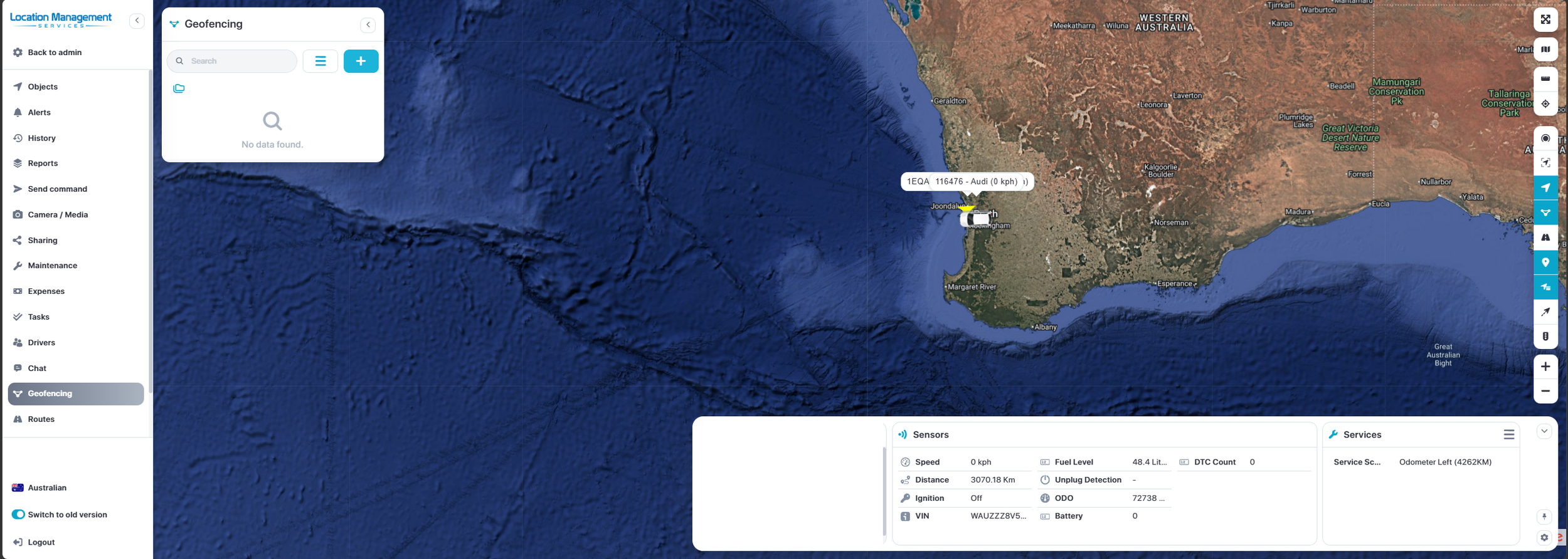
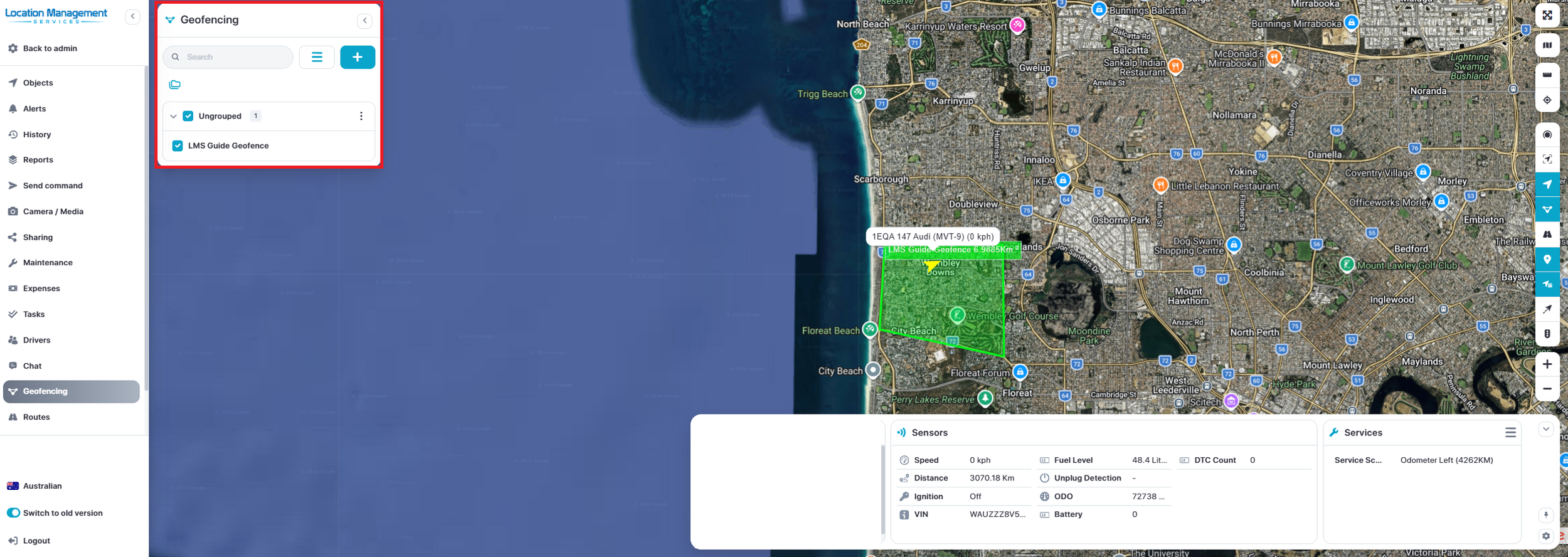
Select the Geofence tab on the left this will display any existing geofences.
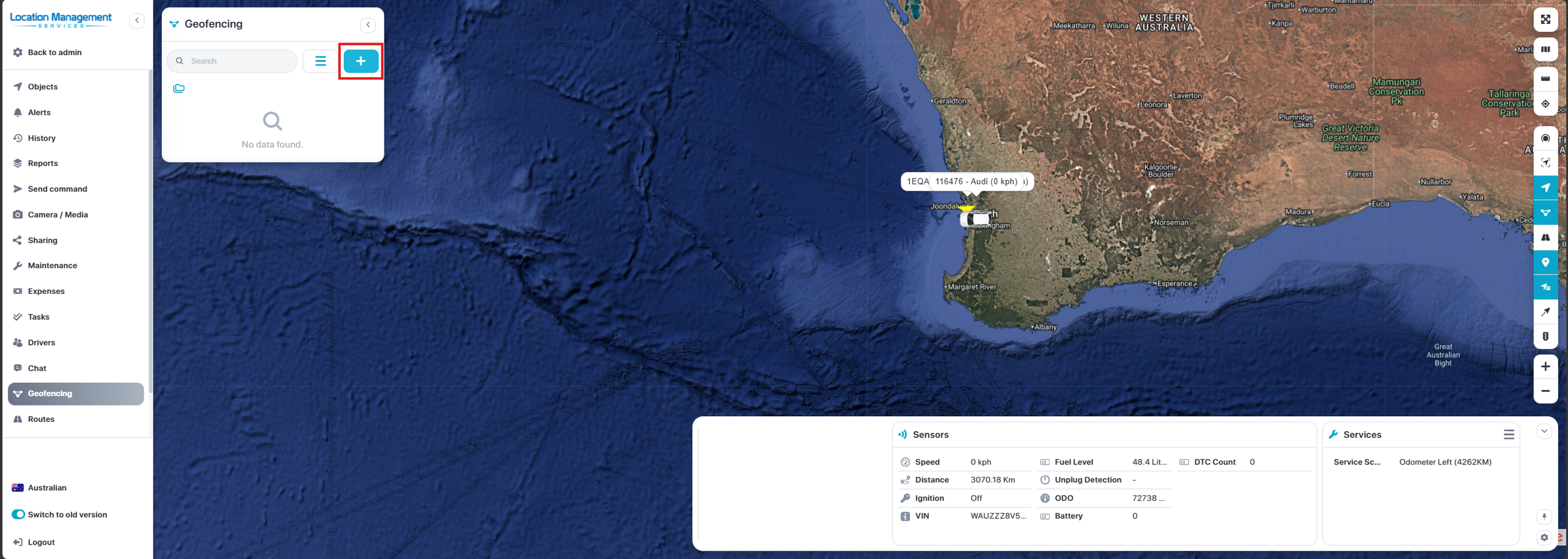
Click Add then the New Geofence window will open.
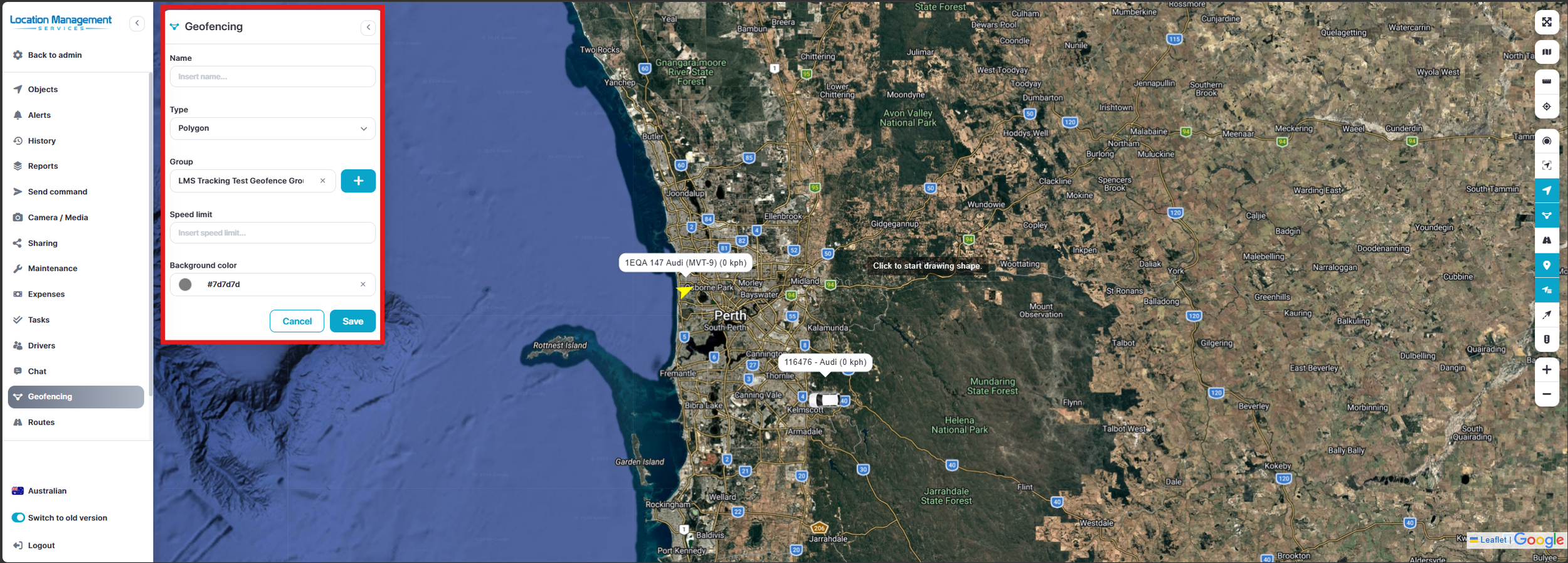
In the Geofence window, name your geofence whatever you’d like it to be known, for example: Perth Depot, Home, Head Office, HQ, 123 Fake Street, etc…
You will see that your cursor changes and says “CLICK TO START DRAWING” you can draw your shape onto the map in whichever place you like.
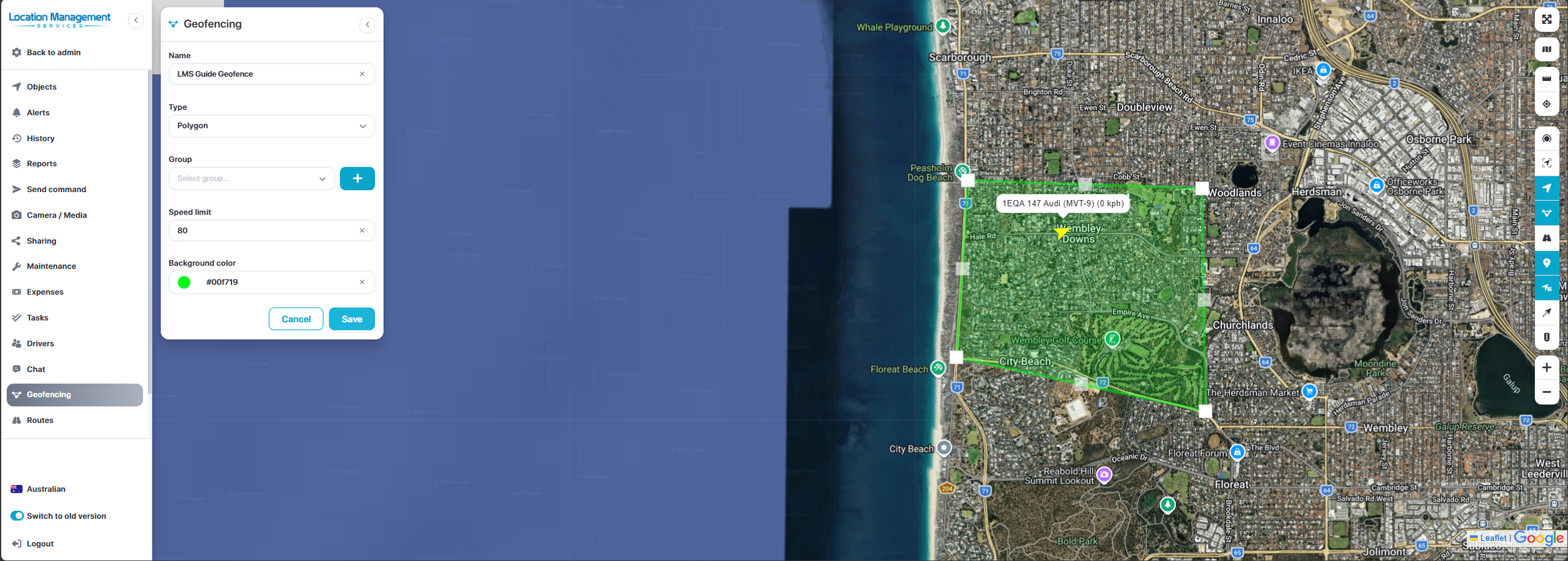
Once you have drawn your Geofence onto the map by clicking each point to finish the shape, click Save.
NOTE: You can add a speed limit to each Geofence, which will allow a report to be run of devices that exceed that limit within that zone
You have now created and saved your Geofence, you will be taken back to the main Geofence window where a list of all geofences will be.
If you get stuck or need help with creating any of these Geofences, feel free to reach out to Support.